

Phoenix supports two workflows for experiments. Use the Playground UI to iterate quickly, or the SDK to run experiments in code.
Run Experiments with the SDK#
Setup#
Make sure you have the Phoenix client and the instrumentors needed for the experiment setup. For this example we will use the OpenAI instrumentor to trace the LLM calls.
The key steps of running an experiment are:
Define/upload a Dataset (e.g. a dataframe)
- Each record of the dataset is called an
Example
Define a task
- A task is a function that takes each
Exampleand returns an output
Define Evaluators
- An
Evaluatoris a function that evaluates the output for eachExample
Run the experiment
We’ll start by initializing the Phoenix client to connect to your deployed Phoenix instance.
Load a Dataset#
A dataset can be as simple as a list of strings inside a dataframe. More sophisticated datasets can be also extracted from traces based on actual production data. Here we just have a small list of questions that we want to ask an LLM about the NBA games:
Create pandas dataframe
The dataframe can be sent to Phoenix via the Client. input_keys and output_keys are column names of the dataframe, representing the input/output to the task in question. Here we have just questions, so we left the outputs blank:
Upload dataset to Phoenix
Each row of the dataset is called an Example.
Create a Task#
A task is any function/process that returns a JSON serializable output. Task can also be an async function, but we used sync function here for simplicity. If the task is a function of one argument, then that argument will be bound to the input field of the dataset example.
For our example here, we’ll ask an LLM to build SQL queries based on our question, which we’ll run on a database and obtain a set of results:
Set Up Database
Set Up Prompt and LLM
Define task as a Function
Recall that each row of the dataset is encapsulated as Example object. Recall that the input keys were defined when we uploaded the dataset:
More complex task inputs
More complex tasks can use additional information. These values can be accessed by defining a task function with specific parameter names which are bound to special values associated with the dataset example:
| Parameter name | Description | Example |
|---|---|---|
input | example input | def task(input): ... |
expected | example output | def task(expected): ... |
reference | alias for expected | def task(reference): ... |
metadata | example metadata | def task(metadata): ... |
example | Example object | def task(example): ... |
A task can be defined as a sync or async function that takes any number of the above argument names in any order!
Define Evaluators#
An evaluator is any function that takes the task output and return an assessment. Here we’ll simply check if the queries succeeded in obtaining any result from the database:
Run an Experiment#
Instrument OpenAI
Instrumenting the LLM will also give us the spans and traces that will be linked to the experiment, and can be examined in the Phoenix UI:
Run the Task and Evaluators
Running an experiment is as easy as calling run_experiment with the components we defined above. The results of the experiment will be show up in Phoenix:
Add More Evaluations#
If you want to attach more evaluations to the same experiment after the fact, you can do so with evaluate_experiment.#
If you no longer have access to the original experiment object, you can retrieve it from Phoenix using the get_experiment client method.
Dry Run#
Sometimes we may want to do a quick sanity check on the task function or the evaluators before unleashing them on the full dataset. run_experiment() and evaluate_experiment() both are equipped with a dry_run= parameter for this purpose: it executes the task and evaluators on a small subset without sending data to the Phoenix server. Setting dry_run=True selects one sample from the dataset, and setting it to a number, e.g. dry_run=3, selects multiple. The sampling is also deterministic, so you can keep re-running it for debugging purposes.
Resume an Experiment#
Long experiments do not always finish in one go. A notebook crashes, a provider has an outage, or you hit Ctrl+C partway through, and you are left with an experiment where some runs are missing or errored. Rather than starting over, call resume_experiment: it finds the (example, repetition) pairs that have no successful run, executes the task for just those, and then applies any evaluators you pass to the runs that are still missing that evaluation. Runs that already succeeded are left exactly as they are.
When a resume replaces an errored run, the run keeps its ID, but any LLM or code evaluations attached to it are discarded, since they were scored against the failed output, and your evaluators score the run again on the new output. Human annotations on the run are kept. This behavior requires a Phoenix server of 20.21.3 or later.
If every task finished but some evaluations are missing or failed, use resume_evaluation instead. It matches each evaluator to existing evaluations by name and runs it only on the runs that do not yet have a successful one, which makes it the cheapest way to add a new evaluator to a finished experiment or to retry after an evaluator outage. By contrast, evaluate_experiment scores every run again and overwrites any evaluation of the same name.
Evaluators that return a list of results are not supported by resume_experiment or resume_evaluation. Resume cannot tell that such an evaluator has already run, so it would run again on every call. Each evaluator should return a single result whose name matches its key.
Run Experiments in the UI#
Phoenix lets you run experiments directly from the UI using a dataset and prompt(s) in the Playground. The results are tracked as experiments attached to the dataset so you can compare runs over time.
Load a Dataset#
- Open Datasets and select the dataset you want to use.
- Open the Playground and choose your dataset from the dataset selector.
Configure a Prompt#
- Define your prompt template and model settings.
- If your dataset inputs are nested, set the Prompt variable path in the dataset settings (gear icon).
Run an Experiment#
Click Run in the Playground. Phoenix runs your prompt across every dataset example and records results as an experiment. If your dataset has evaluators attached, Phoenix also scores each run and records the results as annotations.
Set a Baseline Experiment#
You can mark one experiment on a dataset as the baseline — a persistent reference point that comparisons are measured against. Unlike selecting a baseline transiently in the compare view, this choice is saved with the dataset and survives navigation until you change or remove it.
To set or remove a baseline from the experiments table:
- Open a dataset and go to its Experiments tab.
- Select a single experiment (baseline actions are only available when exactly one experiment is selected).
- Open the experiment’s action menu (or use the selection toolbar) and choose Mark as baseline. To clear it, open the menu again and choose Remove baseline.
The current baseline is indicated by a baseline badge next to the experiment in the table. Setting a new baseline replaces any existing one — a dataset has at most one baseline at a time.
View Dataset Metrics#
The dataset page has a Metrics tab that charts how your experiments trend over time, so you can spot regressions without opening each experiment. Open a dataset and select the Metrics tab (next to Experiments and Versions) to see bar charts across the dataset’s most recent experiments for:
- Run latency — how long runs take
- Error rate — the share of failed runs
- Cost — token spend per experiment
- Token usage — prompt and completion tokens
Use it to confirm a new prompt or model isn’t quietly getting slower, more expensive, or more error-prone than earlier experiments on the same dataset.
Review Failure Modes#
After the run completes, open the experiment to understand where the prompt or model is underperforming.
- Use the results table to sort and filter by evaluator scores (if you have evaluators attached).
- Open examples with low scores (or incorrect categorical labels) to see the full input, output, and reference data.
- If an issue is unclear, open the associated traces to inspect tool calls, model parameters, and intermediate steps.
If you do not have evaluators attached yet, start by scanning outputs and references for patterns, then add evaluators to encode those failure modes.
This workflow helps you identify recurring failure patterns before you change your prompt or model.
Define Evaluators for the Issues You See#
Once you identify a failure mode, encode it as an evaluator so Phoenix can track it across future experiments.
- In the Playground experiment toolbar, open Evaluators.
- Add an evaluator (LLM evaluator or built-in code evaluator).
- Map its inputs from dataset fields, test it on a few examples, and save it.
- Make sure the evaluator is selected, then re-run your experiment so it produces annotation columns in the results table.
Evaluator input mappings can reference input, output, reference, and metadata fields from your dataset examples.
Use LLM evaluators for judgment-heavy issues like relevance, tone, or correctness. Use built-in code evaluators for deterministic checks like regex matching, exact match, or distance metrics.
For more detail on evaluator configuration, see Dataset Evaluators and Using Evaluators.
Experiment Annotations and Optimization Direction#
Evaluators configured in the UI produce annotations that are attached to experiment runs. These annotations power the experiment results table, comparison views, and summaries. In addition to the score itself, annotations carry metadata that helps Phoenix interpret the result.
One of the most important metadata fields is optimization direction, which tells Phoenix whether higher is better, lower is better, or if there is no ordering. Phoenix uses this to visually indicate which runs are better or worse when comparing experiments.
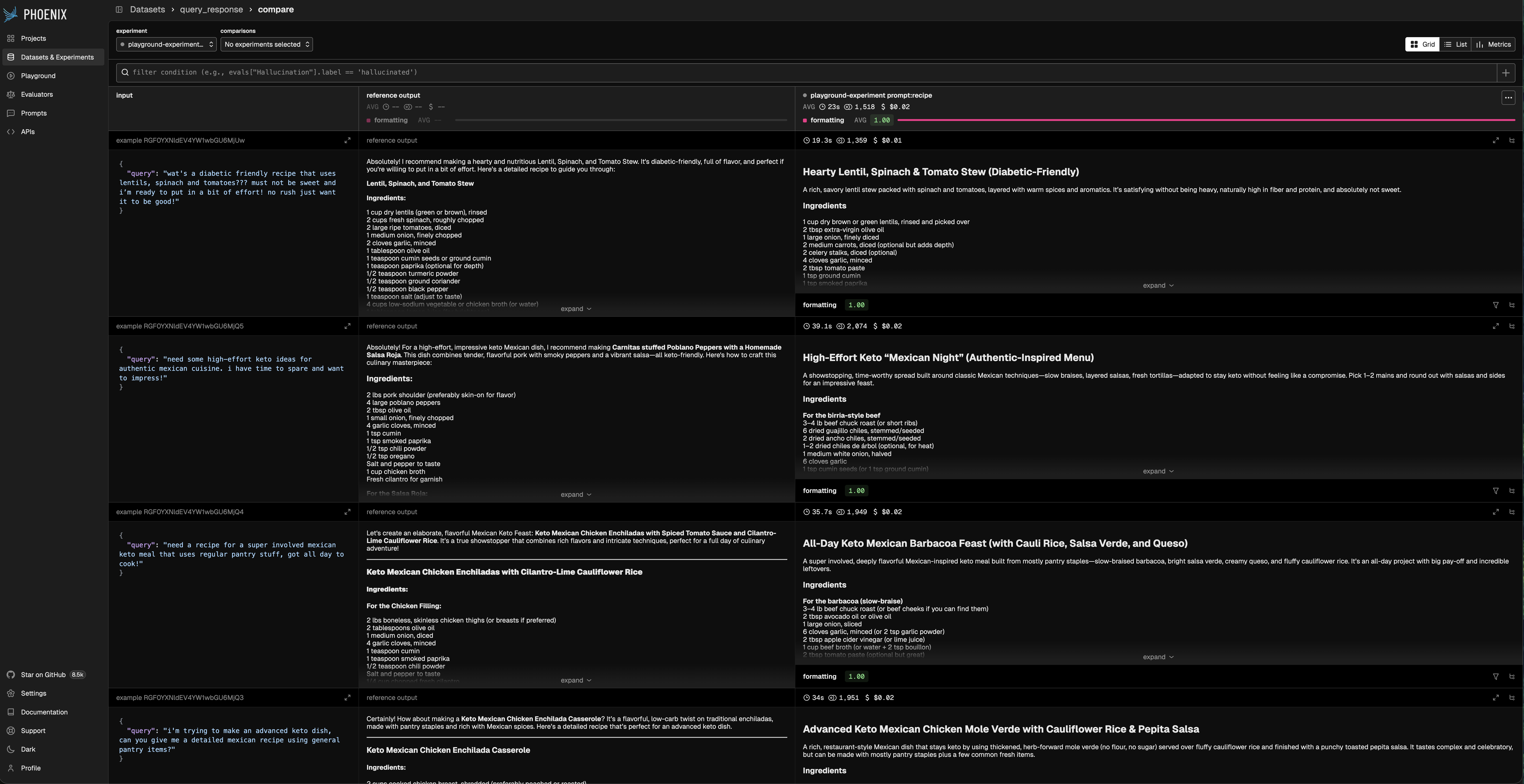
Optimization direction is set by the evaluator output configuration:
- Maximize: higher scores indicate better outcomes (for example, faithfulness or correctness).
- Minimize: lower scores indicate better outcomes (for example, distance or error rate).
- None: no ordering (for example, categorical labels or freeform notes).