

Running Phoenix through your terminal is the fastest way to get Phoenix up and running locally.
Install the Phoenix Library
Run the following command in your terminal to install Phoenix:
pip install arize-phoenix
Start Phoenix
Once installed, start the Phoenix server with:
phoenix serve
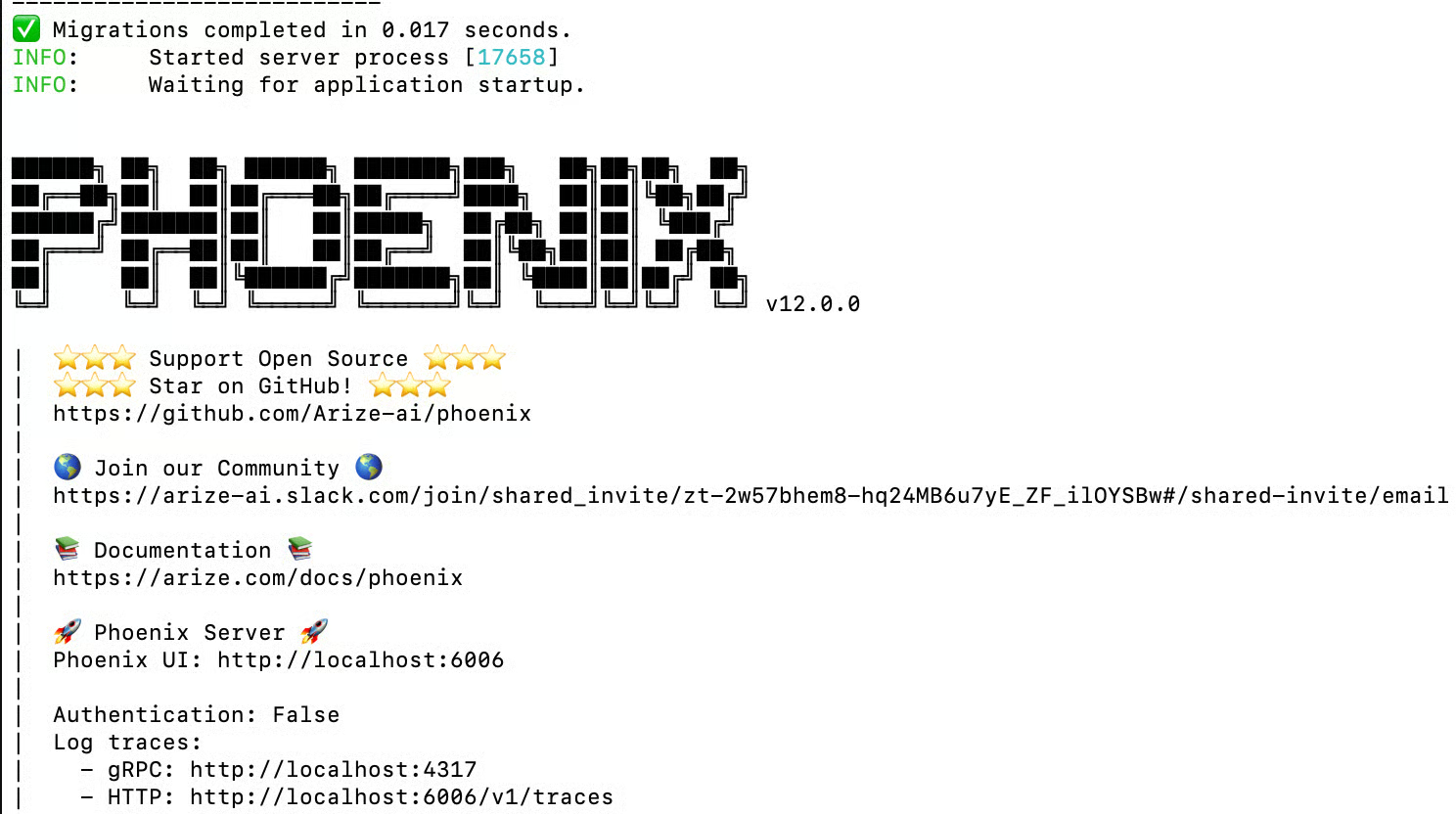
This will launch Phoenix locally and make the application available in your browser. It should look something like this:
Open Phoenix UI
Once Phoenix is running, you can open the UI directly from the links displayed in your terminal. By default, the Phoenix UI will be available at:
This launches the Phoenix dashboard in your browser, where you can begin exploring logs, traces, and other features.
Congratulations! You now have Phoenix up and running. From here, you can start sending traces, create and upload datasets, run experiments, and explore everything else Phoenix has to offer.
Continue to the next guide to send your first trace and begin working with Phoenix in action.